Preview to see how this design looks on mobile

To see the instructions, switch to desktop.
Recreate this scroll animation
Use our Sandboxes to experiment with tools and features from the Studio Editor and get a sense of what’s possible with the platform.
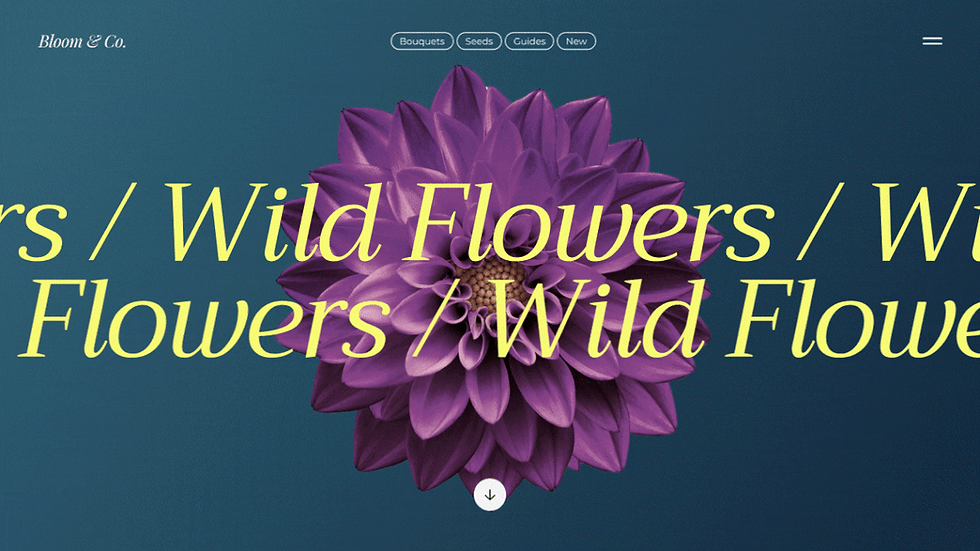
Follow the steps in this Sandbox to recreate a section with scroll animation.
Scroll down to get started
5-10 mins
_gif.gif)
PART 1/3
Set up the background scroll effect
Work Here
1
Add the section background
a.
Scroll down to the blank section below this one and click to select it. You can edit the section from the Inspector panel to the right

Under the Design tab in the Inspector panel,
choose Add image or video

b.
c.
Search for “Dahlia.” Select the image used in the final design. Click Change background

2
Add the background scroll effect
a.
Select the section
b.
From the floating menu on the canvas, click Background scroll effects

c.
Choose Parallax

At the top of the Inspector panel, open the Responsive behavior dropdown and choose Fit to screen

d.
e.
Nice one—hit preview to the top right to see the effect in action

Once you’re finished, scroll down to Part 2 ↓
The changes you made in Part 1 carry over to the next section.

Place your elements
PART 2/3
Position the text
1
a.

Select the text element below and drag it into the section under this one. Place it just above the center of the section. Keep it selected
b.

From the Inspector panel, change the Responsive behavior to Hug
c.
Under Design, change the font size to 120 px*
Duplicate the text
2
a.
Copy and paste to duplicate the text element
b.
Position the second text element below the original
c.

Hold the Shift key to select both text elements. Use the blue icons at the top of the Inspector panel and Align to horizontal center
Stack and align the text
3
a.

With both text elements selected, choose Stack from the floating menu on the canvas
b.

Use the blue icons at the top of the Inspector panel to align the stack to the vertical center of the section

Assets for use
Wild Flowers / Wild Flowers / Wild Flowers / Wild Flowers / Wild Flowers / Wild Flowers / Wild Flowers / Wild Flowers / Wild Flowers / Wild Flowers / Wild Flowers / Wild Flowers /

Add animations
PART 3/3
Add a scroll animation
1

Select the top text element. From the top of the Inspector panel, open the Interactions tab
a.
b.

Under Scroll, click +Add
c.

Select the Move animation and click Adjust Animation
Adjust the animation
2
a.

Change the Angle to 270°
b.

Adjust the Animation area slider to go from 0% to 100%
Add the second scroll animation
3
a.
Select the bottom text element
b.
Repeat step 1 to add the scroll animation
c.

Set the Angle to 90°
d.
Adjust the Animation area to go from 0% to 100%

Great—you’re all set. Preview to see how the effect turned out
Wild Flowers / Wild Flowers / Wild Flowers / Wild Flowers / Wild Flowers / Wild Flowers / Wild Flowers / Wild Flowers / Wild Flowers / Wild Flowers / Wild Flowers / Wild Flowers /
Wild Flowers / Wild Flowers / Wild Flowers / Wild Flowers / Wild Flowers / Wild Flowers / Wild Flowers / Wild Flowers / Wild Flowers / Wild Flowers / Wild Flowers / Wild Flowers /
We added more elements in the section below so you can see the finished design. Click preview to check it out.
Bloom & Co.
Wild Flowers / Wild Flowers / Wild Flowers / Wild Flowers / Wild Flowers / Wild Flowers / Wild Flowers / Wild Flowers / Wild Flowers / Wild Flowers / Wild Flowers / Wild Flowers /
Wild Flowers / Wild Flowers / Wild Flowers / Wild Flowers / Wild Flowers / Wild Flowers / Wild Flowers / Wild Flowers / Wild Flowers / Wild Flowers / Wild Flowers / Wild Flowers /
All flowers used to be wildflowers. They are essential to sustaining life. That’s why we only use native wildflowers in our arrangements, and plant new seeds for every bouquet sold.

Blooming wildflowers give us more than a burst of color. Planting them attracts pollinators and supports the balance of nature.


Get proficient at using the Studio Editor and find other skill-sharpening resources in the Wix Studio Academy.
Be sure to click “preview” before starting a new Sandbox.
Try out more Sandboxes